
Slack Alerts
This tutorial guides you through the process of setting up custom alerts that are sent to a private slack channel.
Note: Slack integrations require an active plan that includes integration access. If you’re unsure whether your plan qualifies, contact your account representative.
Platform Demo
Overview of the Process
This tutorial covers these major phases:
Slack Preparation - Setting up a Slack app with proper permissions
Creating an Integration - Connecting SportsCapital to your Slack workspace
Saving Search and Activating Alerts - Create targeted saved search and activate it
For account creation instructions, please refer to the Getting Started page.
Phase 1: Slack Preparation
Before setting up the integration in SportsCapital, you need to prepare your Slack workspace.
Step 1: Create or Choose a Slack Channel
Open your Slack workspace where you want to receive alerts
Create a new channel or use an existing one:
To create a new channel, click the + icon next to “Channels”
Name it descriptively (e.g.,
#nhl-injury-alerts,#nba-news)Choose whether it should be public or private
Note that you’ll need admin rights to add apps to the channel later
Step 2: Create a Slack App
Click Create New App
Choose From scratch
Name your app (e.g.,
SportsCapital Alerts)Select your workspace from the dropdown menu
Click Create App
Step 3: Configure Bot Permissions
In the left sidebar, click OAuth & Permissions
Scroll down to Bot Token Scopes
Click Add an OAuth Scope
Add these required permissions:
chat:write– Allows the bot to post messageschannels:read– Allows reading channel information
Click Install to Workspace at the top of the page in the OAuth Tokens section
Review the permissions and click Allow
After installation, copy the Bot User OAuth Token (it starts with
xoxb-) in the Oauth Tokens section.This token is sensitive information - store it securely
You’ll need this token when creating the integration
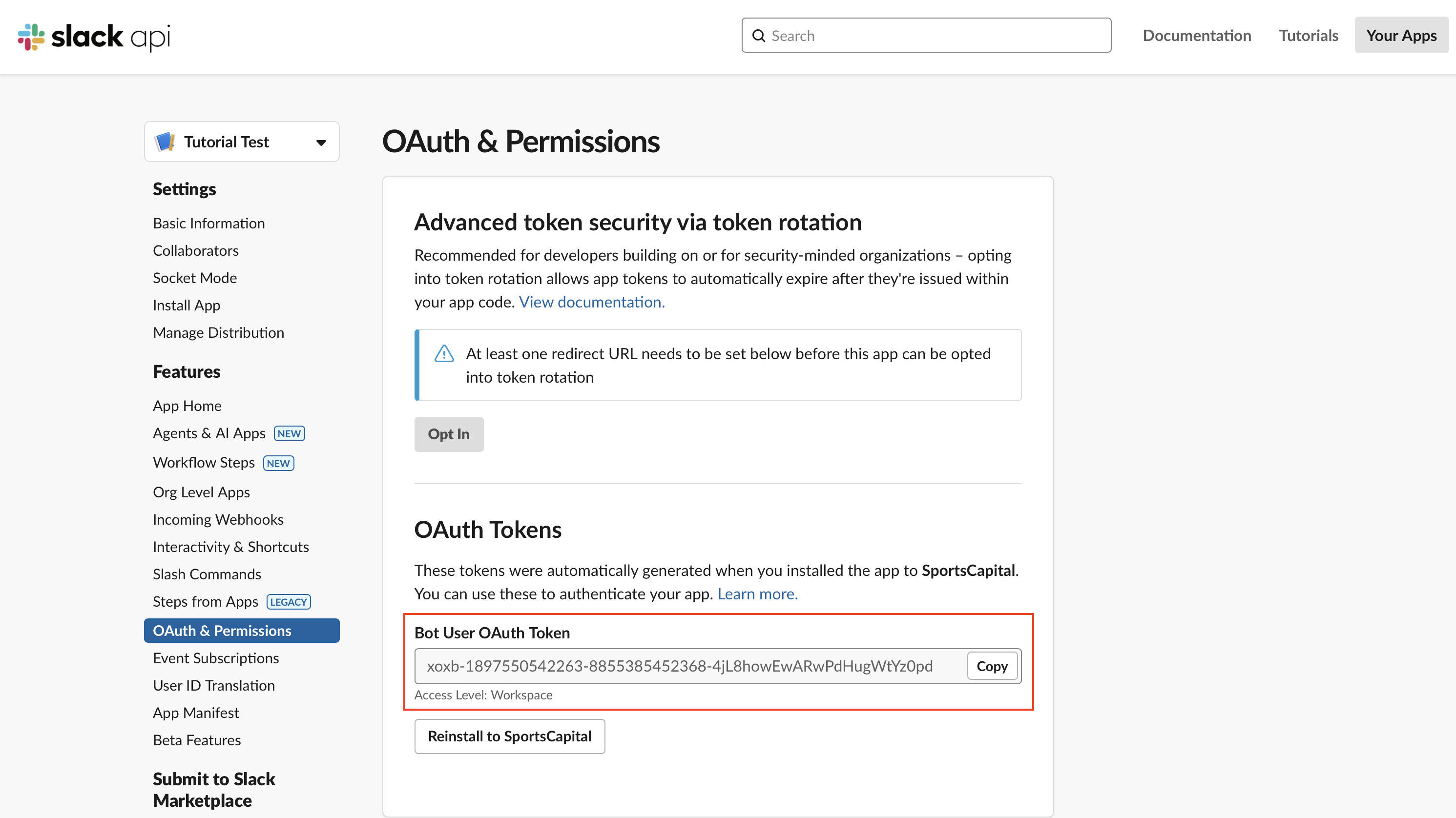
Slack Bot User OAuth Token location.
Step 4: Get Your Slack Channel ID
In Slack, navigate to the channel you want to use
Right-click on the channel name
Select Copy Link
The last part of the URL after the last slash is your Channel ID
Format:
https://app.slack.com/client/TXXXXX/CYYYYYYThe
CYYYYYYportion is your Channel ID
Save this ID for use in the next phase
Step 5: Invite the Bot to Your Channel
In Slack, navigate to the channel where you want to receive alerts
Type
/invite @YourBotNamein the message box, replacing “YourBotName” with the name you gave your Slack appPress Enter to send the command
You should see a confirmation message that the bot has been added to the channel
This step is crucial - if the bot isn’t in the channel, it won’t be able to post messages
Phase 2: Setup an Integration
Now that you’ve prepared your Slack workspace, it’s time to set up the integration in SportsCapital.
Step 6: Create the Slack Integration in SportsCapital
Platform
Log in to your SportsCapital account
Navigate to the Integrations tab in your Command Center
You’ll see a screen with integration options:
If you have no existing integrations, you’ll see the “Add an Integration” card with options for Slack and S3 Bucket
If you already have integrations, you’ll see your existing integrations listed with an “Add Integration” button in the top right
Click Add Integration or select the Slack icon from the integration options
Fill in the required details:
Name: Give your integration a descriptive name (e.g., “NBA Slack Alerts”)
League: Select the league for this integration (e.g., NBA, NHL)
Slack Token: Paste the Bot User OAuth Token copied earlier
Channel ID: Enter the Channel ID you obtained from Slack
Click Save to create the integration
Your new integration will appear as a card in the integrations list, showing:
Integration name
League
Channel ID
A toggle switch for activating/deactivating the integration
A “View Integration” button for editing
A trash icon for deleting
Ensure the toggle switch is set to Active
API
You can create a Slack integration programmatically by making a POST request:
curl -X POST "https://api.sportscapital.io/v1/user/integration?api_key=YOUR_API_KEY" \
  -H "Content-Type: application/json" \
  -d '{
    "name": "NBA Slack Integration",
    "system": "Slack",
    "league_id": "729c2399-f94a-4db3-9710-e2a5b3c4d0e3",
    "payload": {
      "slack_token": "xoxb-your-slack-token",
      "channel_id": "your-channel-id"
    }
  }'
A successful response will include the ID of your newly created integration.
Phase 3: Saving Search and Activating Alerts
Step 7: Save Search
Platform
Navigate to the Platform tab in your Command Center
Click on the Search Criteria area to open the search filters modal
In the modal, configure your search parameters:
League: Must match the league selected for your integration
Entities: Select specific players, teams, or leave blank for all entities
News Types: Choose specific news categories (e.g., Injury, Lineup, Trade)
Other filters: Set date ranges or additional parameters as needed
Enter a descriptive name for your search (e.g., “NBA Injury Alerts”)
Click the Save & Search button to both save your search and execute it
After creating your first saved search, you’ll see a Manage Searches button appear
This button will take you to a list of all your saved searches for future management
API
Create a saved search programmatically:
curl -X POST "https://api.sportscapital.io/v1/user/search?api_key=YOUR_API_KEY" \
  -H "Content-Type: application/json" \
  -d '{
    "search_name": "NBA Injury Alerts",
    "active": false,
    "payload": {
      "league_id": "729c2399-f94a-4db3-9710-e2a5b3c4d0e3",
      "news_filters": {
        "operations": [
          {
            "field": "injury",
            "probability": 0.7
          }
        ]
      },
      "snippet_filter": {
        "min_publish_date": "2025-01-01T00:00:00Z"
      }
    }
  }'
Notice that we set "active": false initially. We’ll enable it in the next step.
Step 8: Activate Your Saved Search
Platform
Navigate to the Manage Searches section by clicking the “Manage Searches” button
Find your saved search in the list
Toggle the Enable Integration switch to ON
This activates your saved search for integration delivery
All active saved searches will automatically deliver content to all active integrations of the same league
No manual linking between specific searches and integrations is required
API
Update your saved search to enable integration delivery:
curl -X PUT "https://api.sportscapital.io/v1/user/search/{search_id}?api_key=YOUR_API_KEY" \
  -H "Content-Type: application/json" \
  -d '{
    "search_name": "NBA Injury Alerts",
    "active": true,
    "payload": {
      "league_id": "729c2399-f94a-4db3-9710-e2a5b3c4d0e3",
      "news_filters": {
        "operations": [
          {
            "field": "injury",
            "probability": 0.7
          }
        ]
      },
      "snippet_filter": {
        "min_publish_date": "2025-01-01T00:00:00Z"
      }
    }
  }'
The key change is setting "active": true, which enables delivery to all active integrations for the same league.